Introduction
Tier lists are one of the most powerful tools in Godforge for understanding hero strength, planning team compositions, and making informed summoning decisions. Whether you're a new player trying to figure out which heroes to invest in or a veteran creating your own rankings, this guide will help you master the tier list system.
What Are Tier Lists?
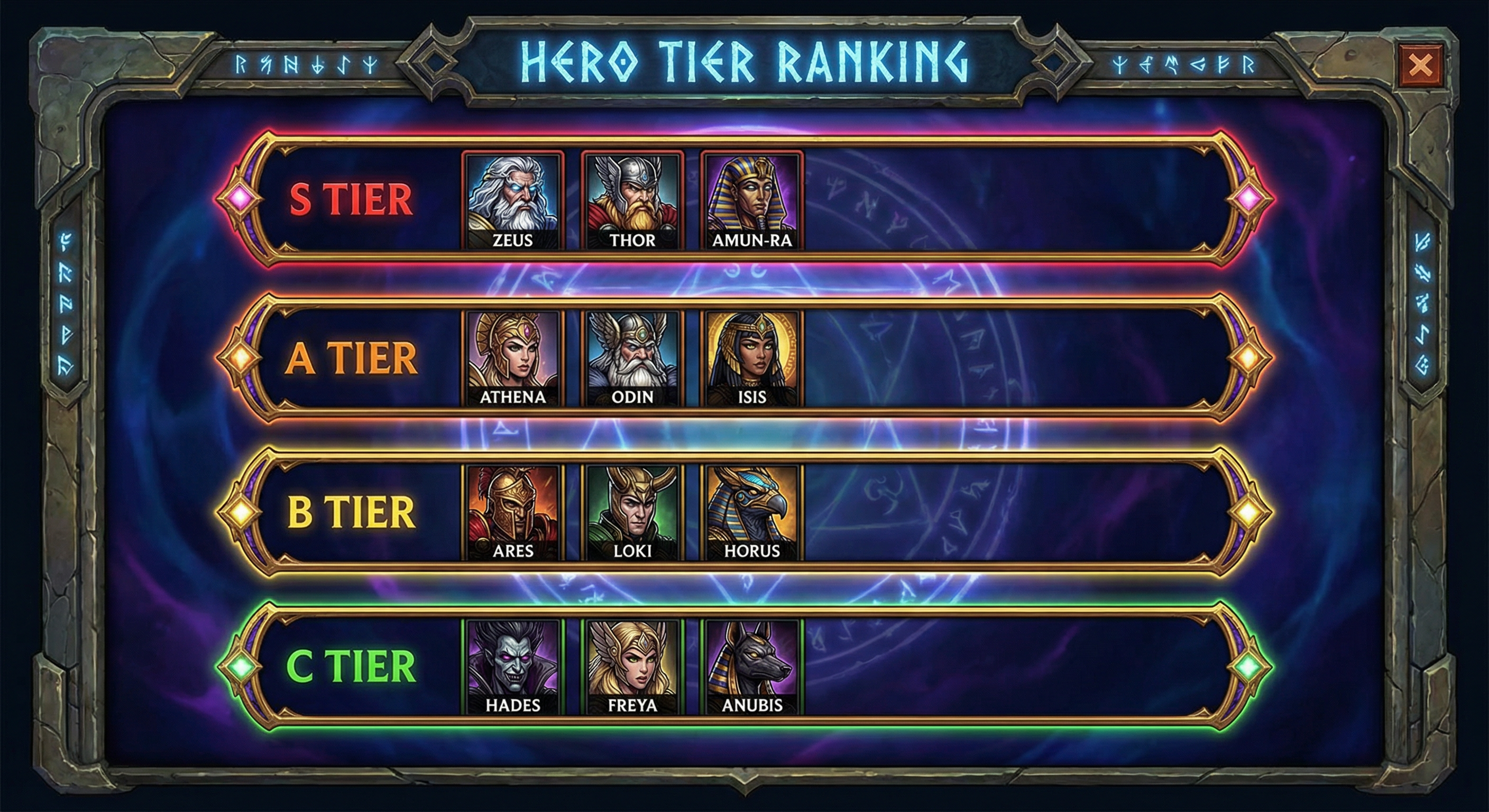
A tier list is a ranking system that organizes heroes into categories (tiers) based on their overall power, utility, and effectiveness in the current meta. In Godforge, we use a standard tier system:
- S-Tier: Best heroes in the game - top priority for investment
- A-Tier: Excellent heroes that excel in most content
- B-Tier: Good heroes with solid performance
- C-Tier: Average heroes that work in specific situations
- D-Tier: Below-average heroes that need buffs
- TBC (To Be Confirmed): New or unrated heroes
Tier lists help you make smart decisions about:
- Which heroes to level first - Focus resources on higher-tier heroes
- Team composition planning - Build teams around S/A-tier cores
- Summoning priorities - Chase specific high-tier heroes
- PvP and PvE strategy - Different modes may favor different heroes
Using the Tier List
Finding the Tier List
Access the tier list from the main navigation bar by clicking "Tier List". You'll see the default tier list maintained by the community, with heroes organized by tier and archetype.
Understanding the Layout
The tier list displays heroes in a grid format:
- Rows represent tier rankings (S, A, B, C, D, TBC)
- Columns represent archetypes (Slayer, Defender, Invoker, Brawler, Disruptor)
- Color coding helps you quickly identify tiers at a glance:
- Red gradient = S-Tier (best)
- Orange gradient = A-Tier
- Yellow gradient = B-Tier
- Green gradient = C-Tier
- Lime gradient = D-Tier
- Gray = TBC (unranked)
Filtering Heroes
Use the powerful filter system to narrow down your view:
- Search by name - Find specific heroes quickly
- Filter by faction - View heroes from specific mythologies (Olympus, Asgard, Aaru, etc.)
- Filter by affinity - Sort by Strength, Wisdom, or Cunning
- Filter by allegiance - Filter Light, Shadow, or Neutral heroes
- Filter by rarity - Show only Legendary, Epic, Rare, etc.
Pro Tip: Combine filters to find very specific heroes. For example, filter for "Legendary + Olympus + Wisdom" to see all Wisdom-based legendary gods from Greek mythology.
Clicking on Heroes
Click any hero portrait to navigate to their detailed hero page, where you can view:
- Complete skill descriptions
- Base stats and scaling
- Recommended builds
- Community discussions
Creating Your Own Tier List
Want to create your own tier list? Here's how:
Step 1: Navigate to Tier List Editor
- Click "Tools" in the main navigation
- Select "Tier List Editor" or go directly to
/tools/tier-list/new - You'll need to be logged in to save tier lists
Step 2: Choose a Starting Template
The tier list editor lets you start from pre-existing templates:
- Default Template - The official community tier list (auto-loaded)
- Community Templates - Public tier lists created by other players
- Your Previous Lists - Your own saved tier lists (found in Dashboard)
Use the search bar to find specific templates by name or creator.
Step 3: Rank Heroes
You have two main areas:
Unranked Pool (Left Side):
- All heroes start here (or load from your template)
- Search and filter heroes using the built-in filters
- Sort by faction, rarity, and more
Tier Rows (Right Side):
- S, A, B, C, D tiers for ranking
- TBC tier at the bottom for unsure placements
How to Move Heroes:
- Click on any hero to open the tier selector popover
- Choose a tier from the dropdown menu
- The hero moves instantly to that tier
- Reorder within tiers - Hover over a hero to see arrow buttons:
- Left/Right arrows to move horizontally within the same tier
- Up/Down arrows to move to the tier above/below
Pro Tip: Start by placing your most confident S-tier picks first, then work your way down through A, B, C, etc. Leave uncertain heroes in TBC.
Step 4: Name and Save
- Enter a title for your tier list (e.g., "Best PvP Heroes Feb 2026")
- Choose visibility:
- Public - Appears in Community Tier Lists for everyone to see
- Private - Only visible to you in your Dashboard
- Rank at least 10 heroes before saving (minimum requirement)
- Click "Save My Version"
Your tier list is now saved and accessible from your Dashboard!
Community Tier Lists
Explore what other players think about hero rankings in the Community section.
Finding Community Tier Lists
- Click "Community" in the main navigation
- Select "Tier Lists"
- Browse public tier lists created by other players
Viewing Tier Lists
Each community tier list shows:
- Creator information - Who made the tier list
- Creation date - When it was published
- Hero count - How many heroes are ranked
- Description - The creator's notes about their rankings
Click on any tier list to view the full rankings.
Learning from the Community
Community tier lists are great for:
- Comparing opinions - See how different players rate heroes
- Meta insights - Identify trending heroes across multiple lists
- Alternative perspectives - Find niche strategies and off-meta picks
- New player guidance - Learn from experienced players' rankings
Note: Tier lists are subjective! Different players value different things. A PvP-focused player might rate heroes differently than a PvE progression player.
Dashboard Management
Your Dashboard is the command center for all your tier lists.
Accessing Your Dashboard
- Log in to your account
- Click your profile avatar in the top-right
- Select "Dashboard"
My Tier Lists Section
The Dashboard displays all your saved tier lists with:
- Tier list title and creation date
- Hero count - How many heroes you ranked
- Visibility status - Public (eye icon) or Private (lock icon)
- Quick actions:
- View - Click the external link icon to view the full tier list
- Toggle visibility - Click Public/Private button to change visibility
- Delete - Remove tier lists you no longer need (with confirmation)
Managing Your Tier Lists
Make Public/Private:
Toggle between public and private at any time. Public tier lists appear in the Community section, while private ones are only visible to you.
Deleting Tier Lists:
Click the trash icon to delete a tier list. You'll be asked to confirm before permanent deletion.
Editing Tier Lists:
Currently, tier lists cannot be directly edited after saving. To update a tier list:
- Create a new tier list using your old one as a template
- Make your changes
- Save with the same title (or a new one)
- Delete the old version if needed
Tips & Best Practices
Creating Effective Tier Lists
-
Be Consistent in Your Criteria
- Decide upfront: PvP, PvE, or overall?
- Early game, mid game, or endgame focus?
- Stick to your criteria throughout
-
Consider the Meta
- Account for current balance patches
- Factor in popular team compositions
- Think about counter-play and synergies
-
Use Descriptive Titles
- Bad: "My Tier List"
- Good: "Best PvP Arena Heroes - February 2026"
-
Add Context in Description
- Explain your ranking philosophy
- Note any assumptions (e.g., "assumes max awakening")
- Mention patch version if relevant
Evaluating Community Tier Lists
-
Check the Date
- Older tier lists may be outdated after balance patches
- Prioritize recent tier lists for current meta
-
Consider the Creator
- Experienced players' tier lists carry more weight
- Look for creators with good community reputation
-
Read the Description
- Understand the tier list's focus (PvP vs PvE)
- Check if it matches your needs
-
Compare Multiple Lists
- Don't rely on a single tier list
- Look for consensus picks across multiple rankings
- Investigate heroes that appear high in multiple lists
Tier List Strategy
For New Players:
- Focus on S and A-tier heroes from the default tier list
- Prioritize heroes that work in multiple content types
- Use tier lists to guide your Godforge Quest legendary pick
- Don't stress too much - even B-tier heroes can clear early content
For Experienced Players:
- Create specialized tier lists (e.g., "Best Guild Boss DPS")
- Share your tier lists to help the community
- Update your tier lists after balance patches
- Experiment with off-meta picks and update rankings based on results
For Competitive Players:
- Track meta shifts by comparing tier lists over time
- Create multiple tier lists for different content types
- Follow top players' tier lists for cutting-edge insights
- Use tier lists to identify counter-picks for popular teams
Common Mistakes to Avoid
-
Treating Tier Lists as Gospel
- Tier lists are opinions, not facts
- Context matters - a D-tier hero might hard-counter an S-tier hero
- Synergy can elevate lower-tier heroes
-
Ignoring Your Own Heroes
- A well-built B-tier hero beats a naked S-tier hero
- Don't neglect invested heroes just because they're "low tier"
- Gear quality matters more than tier ranking
-
Forgetting About Content Variety
- PvP and PvE tier lists differ significantly
- Some heroes excel in dungeons but flop in arena
- Create separate tier lists for different content
-
Ranking Without Experience
- Don't rank heroes you've never used
- Theory-crafting is valuable, but practical experience is better
- Use TBC tier for uncertain placements
Conclusion
Tier lists are an essential tool for any Godforge player, from beginners learning which heroes to invest in to veterans crafting specialized rankings for different content types. By understanding how to use the tier list, creating your own rankings, exploring community opinions, and managing everything from your dashboard, you'll make smarter decisions and optimize your hero roster.
Quick Recap:
- View the default tier list at
/tier-listfor official rankings - Create your own tier lists at
/tools/tier-list/new(requires login) - Explore community tier lists at
/community/tier-lists - Manage your tier lists from your Dashboard
- Remember: Tier lists are guides, not rules - use them wisely!
Whether you're building your first team or fine-tuning your arena roster, tier lists will help you make informed decisions. Good luck, and may your heroes always land in S-tier!